AppyDev Blog
How to Find Developer Tools by Task
Search AppyDev by what you need to do, and see how keyword matching, curated task pages, and a locally trained classifier work together.

Say you want to send password reset emails from a web app. Typing “email” into a directory can turn up newsletter builders, inbox utilities, and templates. All of them have something to do with email. You still have to figure out which ones can actually send a message when someone clicks “Forgot password?”
We built two ways to start from the job. You can describe it in AppyDev search, or open Find tools by task and browse a curated collection. Search is handy if you have a particular phrase or product name in mind. The task pages are helpful when you're still learning what kind of tool you need and which requirements will affect your decision.
How to write a developer tool search query
Start with a verb and the thing you're working on. “Compress an SVG,” “build a portfolio,” and “debug an API” give you more to work with than “design” or “development.” The job usually has a visible result. If you can describe that result, you can judge a search result against it.
For the password reset example, start with “email delivery.” Read the first few summaries to see whether the products send messages from an application. If you need an HTTP API, check the provider's documentation for one. Look up the limits and how the service handles bounced mail before planning an integration. If a result mainly describes designing a newsletter, it might still be useful to your team, but it probably belongs in a different shortlist.
When you already know the product, search its name. If you only remember part of the name, use the part you remember and try a second phrase if the first one is too broad. You can also remove a requirement when it has become a distraction. For example, an app that can export SVG may be useful for making a diagram even if it calls itself a whiteboard. Start with the output and add a constraint once you've checked what the catalog contains.
Search reflects the products listed in AppyDev. If a narrow query comes up short, try the more common name for the task, browse the nearest collection, or go directly to the documentation of a product you already know. A thin result set can mean the catalog has a gap.
When to use Find tools by task
Task pages give you a place to start when a job can be solved in more than one way. Building a portfolio is a good example. A visual site builder might make sense when you want a simple way to add new work. A code-based starter might fit better if the site is part of your development portfolio and you expect to maintain the source. Both can get you to a published URL.
Open a collection from Find tools by task, read what it covers, and pick a couple of tools to inspect. Use the listing descriptions to identify the trade-offs that matter for your case. Then open the provider pages for details that can change, such as plan limits, export formats, or supported integrations. Once you decide how you want to build the project, a Stack Recipe can help you work through it in order.
The collections are backed by the catalog and have their own pages. That makes them useful as shareable starting points. You can send a teammate a page about the task you're discussing and both see the same context. The search box still makes sense for a phrase the collection doesn't cover or for looking up one specific product mentioned on it.
How keyword search and task ranking work together
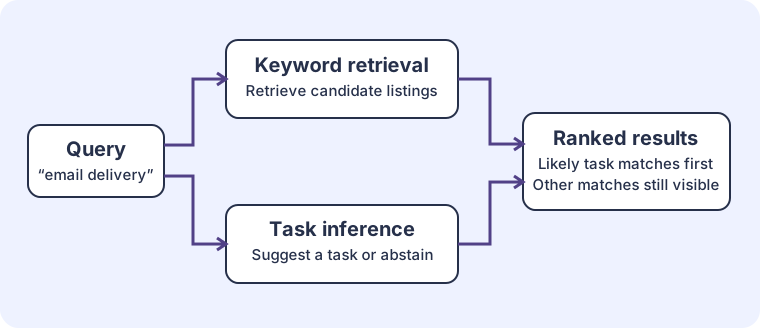
AppyDev starts with a lexical index. It looks at catalog text and finds entries that match the terms in your query. A lexical match is useful for product names and for tasks that have a fairly standard name. It can also surface a product whose description uses the same terms for a different purpose. A template that mentions email delivery and an actual delivery service can both be valid keyword matches.
The task classifier adds another signal to that set of matches. It can infer a named task from a short query and compare it with the likely main purpose of a listing. Results with a matching inferred purpose can rank ahead of incidental mentions. Confidently different purposes can appear under other keyword matches, and uncertain listings stay available. You can still look through the lexical results if the first group misses a tool you wanted to see.
There are several ways the classifier can step out. Exact product names keep their usual behavior. When a query uses unknown vocabulary, contains a negation, or falls below the model's acceptance threshold, search can fall back to the existing behavior. Explicit filters still apply across the result groups. A classification in a comparison panel is marked as inferred and accompanied by source summary text, which gives you a place to check the suggestion.
This layering is important. A relevance score can help decide what to show first. A claim about a tool's pricing, privacy, integrations, or supported formats needs its own evidence. Even a strong match for “privacy analytics” cannot tell you whether a vendor meets the requirements for your project.
How we trained the search-purpose classifier
We wanted to see whether the catalog itself held enough information to make that extra ranking decision. The production model uses public titles, subtitles, and the first sentence of each listing's description. We cleaned and normalized the text, removed URLs and email addresses, and left contact information, pricing, and taxonomy out of the model inputs. The taxonomy helped propose task labels, which were then reviewed against listing summaries. A tool could have more than one supported main purpose.
Similar products and near-duplicate summaries were grouped before splitting the data. If two versions of the same product ended up on opposite sides of the split, a good benchmark result could simply reflect recognition of familiar text. The production training partition included 687 listings. Another 172 were held out from fitting. The training data also included 124 short task phrases because the way a person types a query often looks different from the way a tool describes itself.
The model uses TF-IDF features over individual words and pairs of adjacent words. These features give more weight to terms that are informative across the corpus. A small feed-forward neural network takes up to 4,000 features, passes them through one 48-unit hidden layer, and produces 31 independent task scores. Independent scores allow a listing to be relevant to more than one task. A score over the acceptance threshold is a ranking signal, rather than a calibrated estimate of the chance a tool fits your needs.
Training happened offline. We exported the weights in an eight-bit representation and used a small JavaScript inference implementation. Listing predictions are computed while the index is built. Query inference runs locally, so an interactive search does not have to wait for an external model service. The model artifact is about 130 KB compressed. That figure describes transferred model data, and the time a user experiences also depends on the rest of the search payload, device, and network.
What improved in testing
Before the classifier, the example query “analytics” returned 21 mixed results, while “privacy analytics” produced two incidental matches and “email delivery” produced three results. Those examples showed why ordering mattered. Matching the main use can make the first group easier to evaluate, while keeping other matches available preserves a path to tools the classifier misunderstood.
At the shipped threshold, the classifier accepted 49 of 172 held-out listings. Of those 49 accepted top labels, 45 agreed with the reviewed targets. That comes to 91.8% precision among accepted predictions and 28.5% coverage on that listing benchmark. For named tasks specifically, 25 of 27 accepted labels agreed. The holdout helped guide development and threshold choice, so these numbers are best read as a regression benchmark.
On 68 additional task paraphrases, seven received an accepted named-task prediction and all seven matched their expected category. Most queries in that set did not receive an accepted named task. That is a useful detail if you are wondering why two similar phrases can show different result groups. Known mistakes included confusing image detection with editing and interpreting a Markdown editor as a UI component tool.
We also tested a separate candidate with isolated training, validation, and test sets. It got 25 of 25 accepted named query predictions right on the reserved test, while only 36 of 43 accepted named listing predictions agreed with their labels. Listing precision fell below the 90% release gate, and we kept the original model in production. The two experiments use different datasets and evaluation setups. The headline percentages are therefore a poor basis for a direct before-and-after comparison.
A later transformer experiment recognized more queries on the previously inspected benchmark. It accepted a named task on 63 of 68 queries and got 58 of those 63 right. Its quantized ONNX graph is about 23 MB, and some broad queries still got the wrong task. It remains an offline candidate outside the website bundle. An independently reviewed test set and browser startup measurements would help decide whether broader coverage is worth the cost.
The next question is whether people reach a useful listing or provider more often when searching by task. The benchmarks describe behavior on test inputs. They leave open what happens when a person uses unfamiliar wording or gives the directory a job it cannot cover. You can find the implementation and evaluation history in the production search PR and the follow-up tuning PR.
Try the same search two ways
Pick something you need to finish this week. Search for the product category first, then describe the output. If you need to build a demo dashboard, compare “chart tools” with “prototype a dashboard.” The first phrase should help you explore one part of the problem. The second should help you think about the flow around it, including where data comes from and how someone navigates the page.
Give yourself one question to answer before opening a listing. Can I get a prototype running with sample data? Does the output fit the rest of my app? Is there an interactive example I can use to check the workflow? Once you have an answer, save the candidates you want to revisit in My Toolbox. This gives your next search a starting point and a concrete reason for keeping each tool on the list.
If a search returns a plausible name, take a minute to read the summary before opening the site. Look for a sentence that connects the tool to your desired result. That small check is often enough to distinguish a tool you'll actually try from one that merely uses the same terminology.