AppyDev Blog
How to Try Developer Tools Before Leaving AppyDev
Use Try in AppyDev to test interactive demos for SVG, CSS, colors, and other developer tools directly from selected listings.
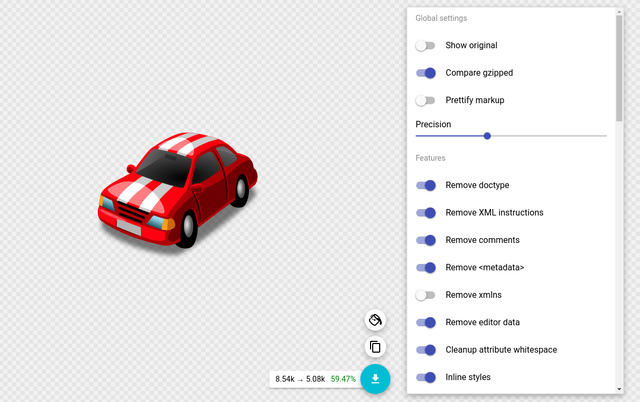
A tool can look great in a screenshot and still be awkward for the job you need to do. An SVG optimizer might show an impressive reduction on its default file. You care whether it can shrink a file like yours and keep its gradients intact. You usually learn more from one small test than from opening several product homepages.
Try in AppyDev gives selected listings a live demo you can open on the page. Use the header's Try in AppyDev link to find eligible tools, then open a listing and activate the demo. The provider hosts the interactive content. AppyDev keeps the listing, context, and external links around it so you can decide where to go after trying it.
Where to find interactive developer tool demos
The header link opens the tool catalog with the demo filter selected. It shows listings with a configured interactive example. Open a tool and find the Try in AppyDev control on its detail page. Once you activate it, you can use the demo in the frame or open the provider's demo in a separate tab.
The examples span different kinds of work. You can try generating a color palette, explore a CSS grid, test a regular expression, or inspect an interactive mapping example. Some providers expose a dedicated playground. Others expose a generator or example page. You'll get more out of the session if you decide what you want to learn before you start clicking around.
For example, “can I produce an editable SVG from a sample shape?” is a question you can answer quickly. “Is this a good design platform?” probably needs a longer evaluation. Start with a result you can inspect. Check whether you can produce it, see which controls mattered, and note any part of the real workflow that would need another test.
At the expansion release, AppyDev had 20 configured interactive tools, up from the first group of selected previews. The list is tied to specific pages a provider allows us to embed. Some useful products have a listing and no interactive example. Those still have their ordinary website link.
Try an SVG optimizer with a representative file
Pick an SVG similar to the one you plan to use. For a first run, choose a public example or draw a small test shape with the features you need. If your real asset depends on IDs for styling or on references for gradients, include a couple of those in the example. A rectangle alone may tell you how the tool handles a rectangle, which is fine as a smoke test but leaves your actual question unanswered.
Open the SVGOMG listing from the demo filter and try the provider's example. Change one option at a time so you can tell which choice affected the output. Compare the result visually, then inspect any identifiers or attributes your page relies on. A smaller file helps only if it still works in your layout. You can paste the result into a scratch page to check it with your CSS and normal viewport sizes.
This is also an easy way to compare utilities. Give each one the same input and look at the output in the same environment. If an optimizer removes an attribute you need, see whether it can be preserved without losing the rest of the benefit. A live example helps you find that trade-off before changing the asset pipeline.
For files containing client information or private artwork, check the provider's handling of input before using the real file. The frame loads a third-party page. The relevant question is what that page does with what you enter. Sample data lets you test the mechanics without answering every data-handling question up front.
Try a CSS grid or color tool with an actual constraint
Open a CSS grid generator and work from a layout you need. For instance, you may need a main column and a sidebar on desktop, with the sidebar moving below the content at narrower sizes. Start with the layout the generator can express. Take the result to a scratch page and try it with real-length headings and a narrow viewport. The generator can help you see the structure. Your sample content will tell you whether the structure holds up.
You can do something similar with a palette tool such as Coolors. Bring a known brand color and ask whether you can find a pair that works for the UI element you're designing. Preview it on a realistic example with the intended background. Then check contrast for the actual text size and component state. The palette tool can help you explore choices while the contrast check answers a separate question about how the colors will be used.
A regex playground is another good fit. Pick a few strings that should match and a few that should fail. Include a boundary case you expect someone to get wrong. Check the expression with the regex engine you will deploy, since supported syntax and matching behavior can vary. That follow-up is worthwhile even if the playground made the first draft much easier.
These are short tests you can complete before creating an account or adopting a library. If the demo answers the first question, follow the provider link to check the rest of the workflow. If you need more time, save the candidate in My Toolbox so you can return to the same listing.
How the embedded demos work
AppyDev maintains a reviewed mapping from tool listings to demo URLs. That mapping powers both the catalog filter and the detail-page control. Keeping one source of truth means that a tool shown in the demo filter has a configured destination on its listing. Each destination is chosen for a particular tool. The site does not infer an embed address from any link it happens to find in a product description.
The listing opens the provider page in a sandboxed iframe when you activate the demo. Scripts are enabled because an interactive generator or playground needs them. Selected demos have an additional sandbox permission when they rely on access to their own origin, such as storage or workers. The iframe uses a no-referrer policy and has a label so assistive technology can identify the demo. A separate new-tab link is available next to it.
There is no model training involved. The logic looks up a reviewed configuration and renders the relevant embed when requested. The provider's site supplies the actual tool, so changes to that external page or its frame policy can affect what you see. If the example fails to load or works better at full width, follow the new-tab link to try the provider's version directly.
One reason for waiting until you click is that a catalog page should remain useful before a third-party demo loads. You can browse descriptions and compare tools without immediately requesting the interactive content for everything you see. Once you activate an embed, its load time depends on the provider, network, and device. The design separates that cost from the initial visit. We haven't measured a production latency improvement from the change.
What we verified and what the demo can tell you
The initial preview PR introduced the listing control and embedded demo behavior. The palette tools update and 20-tool expansion added more reviewed destinations. We also gave the filter a place in the site header so visitors could find tools they could try without knowing their names first.
The concrete change is that selected products now have a path from listing to interactive input and output on the same page. We can verify that the filter and listing agree about availability and that the frame loads after activation. Actual usefulness depends on whether the provider offers an example relevant to what you need. A view of the filter or a click on a demo cannot establish that someone completed a test.
As we learn more, the question is whether someone who tries a demo can make a decision with less back-and-forth. Sometimes the outcome will be opening the provider's site. Other times it will be moving on because a required output format is missing. Both can be useful. We don't have a measured time saving or a provider conversion uplift to report.
Try the provider page directly if your test needs browser features that are unavailable in the frame. For example, a workflow that depends on signing in or opening another window may be better suited to the full provider site. The listing offers that path alongside the embed.
Give one demo a five-minute test
Open the demo filter and pick a tool for something you plan to do soon. Bring a sample input and write down the expected output before opening the frame. Test a normal case and one you suspect could fail. That gives you enough information to decide whether to open the provider site or look for another tool.
If you haven't chosen a category yet, start with Find tools by task and use the demo when you find a promising listing. For a project with several tools, use a Stack Recipe to decide which step you need to prove first. An interactive example is most useful when it answers a specific question about that step.